> For the complete documentation index, see [llms.txt](https://basedinc.gitbook.io/basedbid/llms.txt). Markdown versions of documentation pages are available by appending `.md` to page URLs; this page is available as [Markdown](https://basedinc.gitbook.io/basedbid/investors-guides/selling.md).

# Selling

This guide walks you through the process of selling tokens on BasedBid. Follow these steps in order to sell any of your tokens after you've purchased them

#### How to Guide <a href="#how-to-guide" id="how-to-guide"></a>

<details>

<summary>Step 1: Connecting your Wallet</summary>

Make sure your wallet is connected before proceeding.&#x20;

<p align="center"><a href="/basedbid/explainers/connecting-your-wallet.md" class="button primary" data-icon="wallet">How to Connect your Wallet</a></p>

</details>

<details>

<summary>Step 2: Pool Page &#x26; Trading Panel</summary>

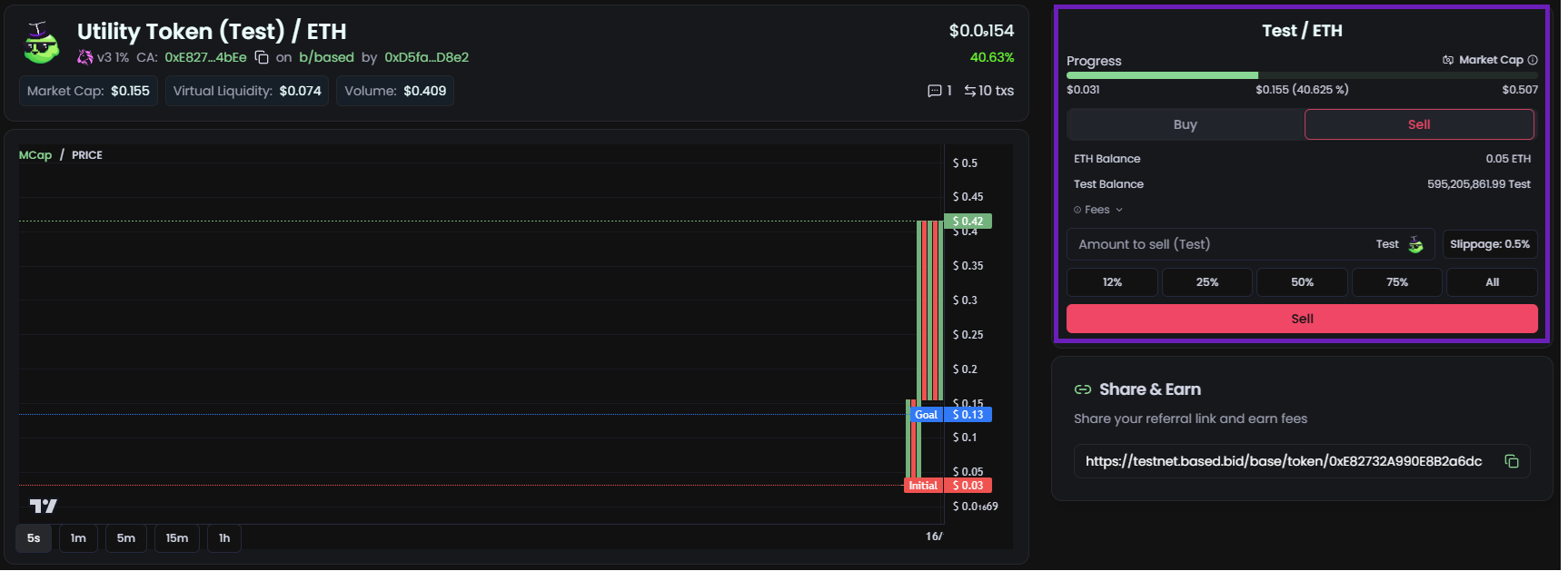
Navigate to the pools page. You'll see the trading panel on the right side of your screen

<div data-with-frame="true"><figure><img src="https://3527517113-files.gitbook.io/~/files/v0/b/gitbook-x-prod.appspot.com/o/spaces%2FY8k5Pri8O9lw2SMUjS2v%2Fuploads%2FzR3WOzSMXFanGxMDco7m%2Fsell%20nav.png?alt=media&amp;token=da05d5d9-c461-4cf6-ad8a-7e29d48fbd21" alt=""><figcaption></figcaption></figure></div>

</details>

<details>

<summary>Step 3: Sell Option</summary>

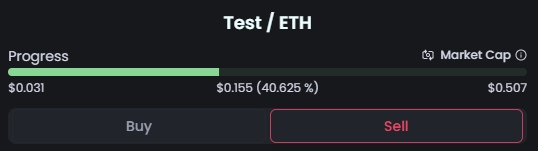
Make sure you have the "Sell" option selected

<div data-with-frame="true"><figure><img src="https://3527517113-files.gitbook.io/~/files/v0/b/gitbook-x-prod.appspot.com/o/spaces%2FY8k5Pri8O9lw2SMUjS2v%2Fuploads%2FAIrBybiWcstzsVtRpapi%2Fimage.png?alt=media&amp;token=6ad17636-7212-4bb7-a1ae-d08ecb3d6a0d" alt=""><figcaption></figcaption></figure></div>

</details>

<details>

<summary>Step 4: The Amount</summary>

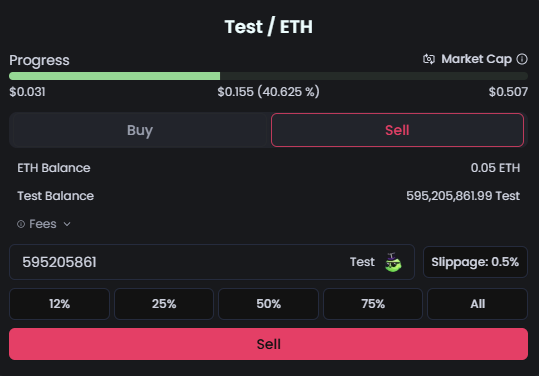
Enter in the amount you want to sell or use the quick select buttons. Adjust your slippage settings if needed

<div data-with-frame="true"><figure><img src="https://3527517113-files.gitbook.io/~/files/v0/b/gitbook-x-prod.appspot.com/o/spaces%2FY8k5Pri8O9lw2SMUjS2v%2Fuploads%2FxttI0aSfOTiF9xRzWR5F%2Fimage.png?alt=media&amp;token=8488dad4-313c-4a67-971a-4b653286711b" alt=""><figcaption></figcaption></figure></div>

</details>

<details>

<summary>Step 5: Confirming your Transaction</summary>

Click "Sell" and confirm the transaction in your wallet when prompted
</details>